“I don’t have time to design graphics.”
An image from one sentence
Describe the idea and pick a style. POSTIVA makes the image in the background while you keep working.
Create a post image in the media hub or a whole carousel in the AI chat. POSTIVA bases every image on your profile, so the scenes, people and props fit what you do.


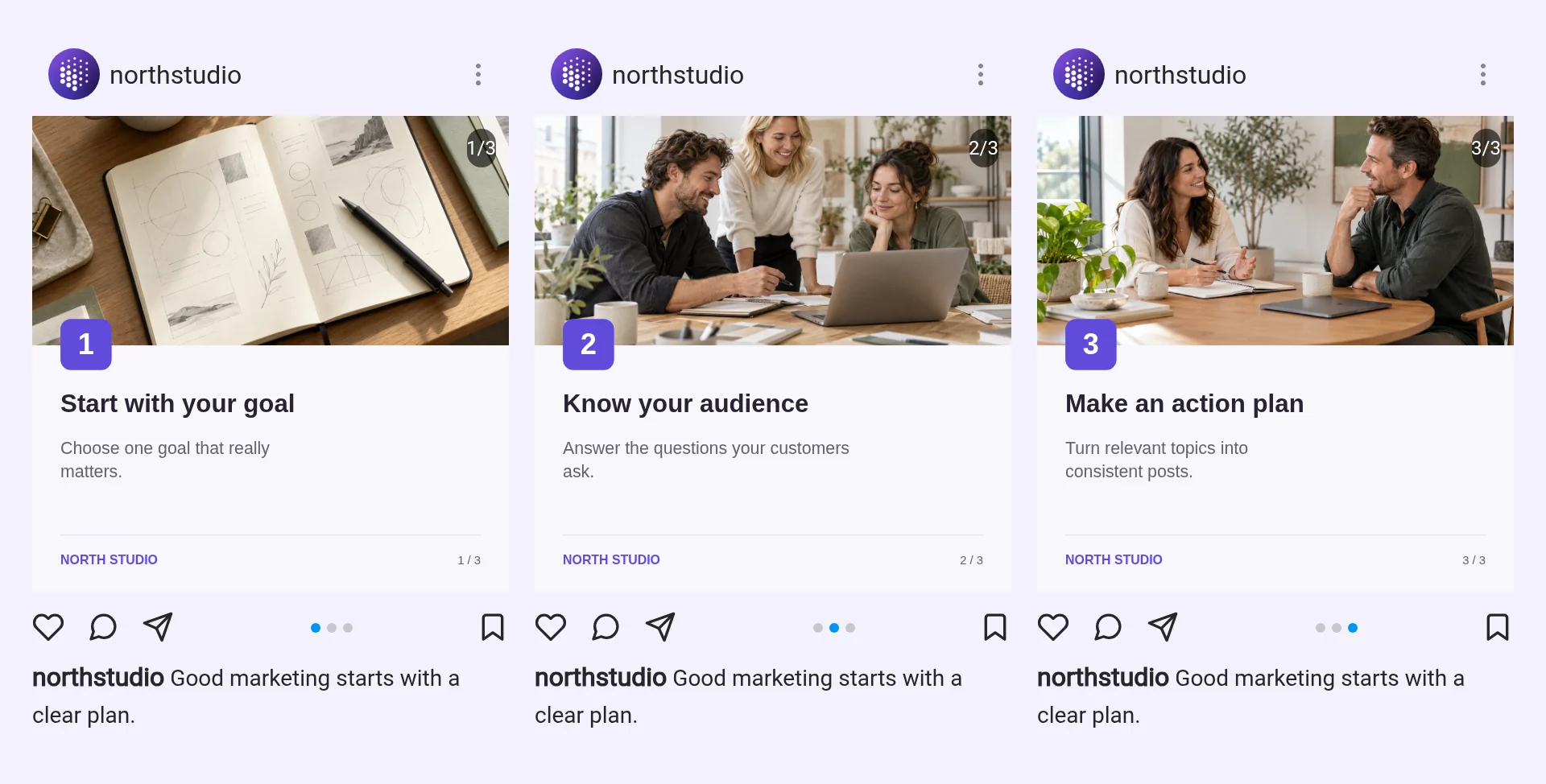
Need one image? Open the Media hub and switch to AI Create. Describe the idea, choose the proportions and one of nine styles, and POSTIVA generates the image in the background while you keep working.
Planning a carousel? The idea card in the AI chat comes with slide briefs. Generate carousel creates every slide from them in one go, and one optional reference image keeps the same person or product across the slides.
Every image starts from your profile: your niche, your audience, what your business does, your language and your tone of voice shape the scene, the people and the props.
Nothing lands in a post by surprise. You add an image with Add to post, or move a whole carousel into the editor with Apply idea.
The AI chat generating a carousel for a fictional business.
“I don’t have time to design graphics.”
Describe the idea and pick a style. POSTIVA makes the image in the background while you keep working.
“Carousels take me a whole afternoon.”
Generate carousel creates all the slides from the idea card, so they come out together.
“Stock photos don’t look like my business.”
Your niche, audience and tone of voice shape the scene, the people and the props.
“I want to stay in control.”
Regenerate, save to your library or add to a post. Nothing changes until you choose.
On the dashboard, tap the Media hub tile, or open the media tile in the post editor. Switch to the AI Create tab.

Write your idea in Describe the idea, or tap AI Proposal to use a prompt from your chat idea. Add reference images with + if you like.
Under Select proportions, pick 1:1, 4:5 or 1.91:1. Under Style, choose from nine styles: Realistic, Dark Cinematic, Editorial, Minimal Illustration, 3D Animated, Toy 3D, Comic Book, LEGO and Anime Painterly. Your favourite styles come first, and POSTIVA remembers the last one you used.

Generate image makes one image per run. It works in the background, and you see Generating your image… until it’s ready.
Then choose: Add to post (when you opened the media hub from the post editor), Regenerate for another version, or Save to library to keep it for later.

Carousels are made in the idea card of the AI chat. Generate carousel creates every slide from the slide briefs, and you see the progress, like 2 of 3 slides ready. If some slides fail, Generate missing slides fills the gaps.
Add one reference image first if you want the same person or product on every slide.

Apply idea · 3 images moves the text and the images into the post editor. Check the preview and save the post.
Yes. POSTIVA bases every image on your profile: your niche, your audience, what your business does, your language and your tone of voice shape the scene, the people and the props.
Yes, in the AI chat. The idea card’s Generate carousel button creates every slide from the slide briefs, and Generate missing slides fills in any that failed.
One. Tap Regenerate for another version, or Save to library to keep it.
Yes. Add one optional reference image before you generate the carousel, and it keeps the same person or product across the slides.
Yes. Each image and each carousel slide counts toward your AI image allowance. The app tells you when you reach the limit, and you can see the plans on the pricing page.
Create an account, describe your business and let POSTIVA create images that fit it.
No card required. FREE forever.