“I don’t know what to write about.”
Start with a question, not a blank page
Describe a rough idea or open a post from your plan. The assistant asks for what it needs.
Tell POSTIVA what the post is about. The assistant asks a few questions, then prepares the text, a first comment and image ideas in your brand’s voice, ready to move into the editor.


Inspire AI lives in the post editor. Write in the chat what the post should be about, or start from your weekly plan: Create post opens the editor with the brief already in the chat.
Before it writes anything, the assistant asks a few questions with suggested answers. Pick the one that fits, write your own or add notes, so the post sounds like you rather than a template. It also uses the brand voice from your profile.
About 1–2 minutes later you get an idea card: a post, carousel or reel idea with the post text (the call to action is part of it), a first comment and ideas for images or slides. Reels get a list of scenes instead of images.
Generate images right in the chat, or every carousel slide in one click. Apply the idea and the text and images move into the editor. Come back later and the latest idea is still there, on any device.
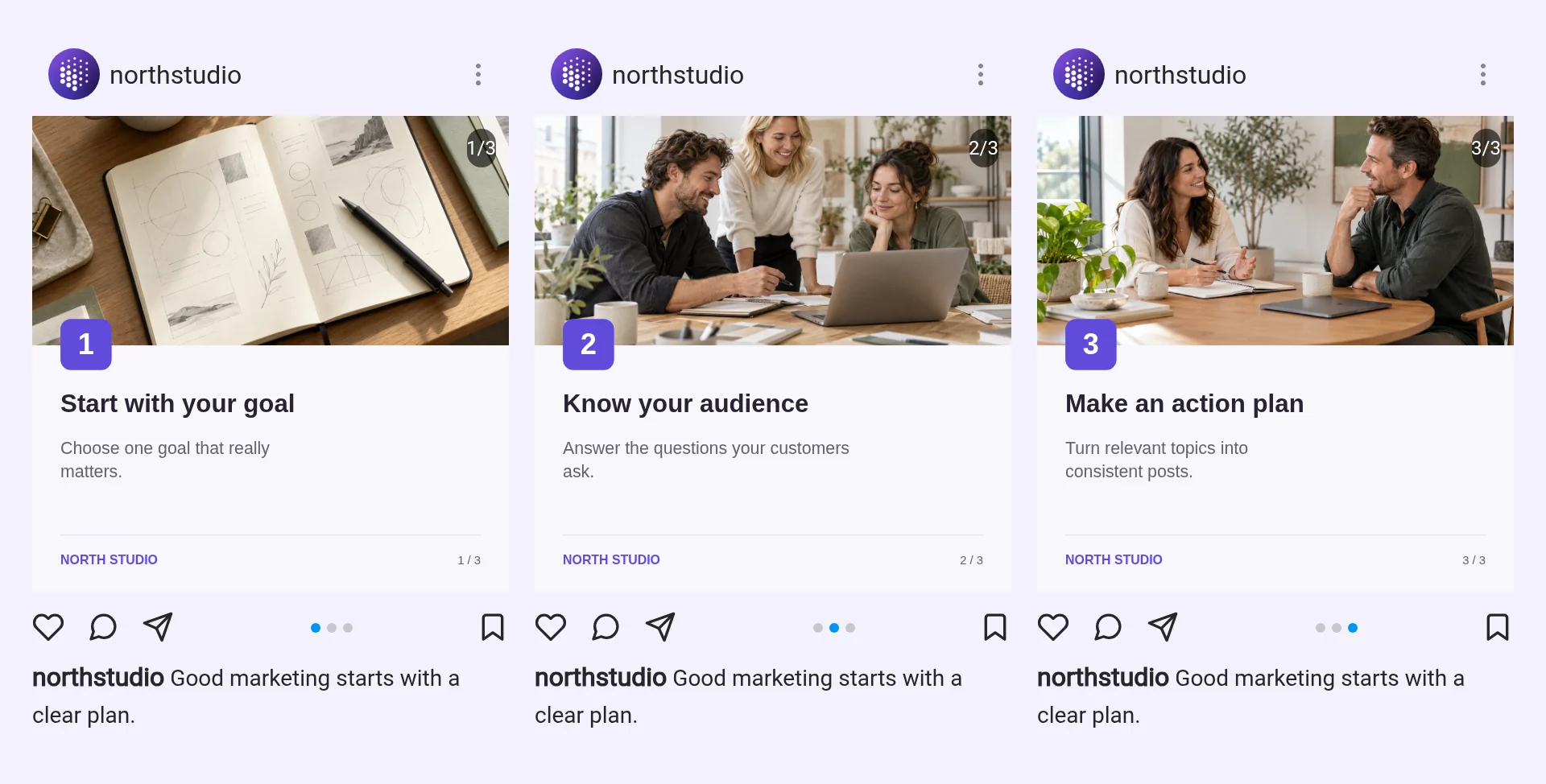
A sample carousel for a fictional business.
“I don’t know what to write about.”
Describe a rough idea or open a post from your plan. The assistant asks for what it needs.
“My content will stop sounding like me.”
The assistant uses the brand voice from your profile, plus your answers and notes.
“I have too many apps and mental chaos.”
Post text, a first comment and images or carousel slides come together in one chat.
“I have a million ideas but zero execution.”
An idea card arrives in about 1–2 minutes. Apply it, check the preview and save.
In the post editor, tap Inspire AI under the text area (on mobile: Inspire). If the post isn’t saved yet, POSTIVA saves it as a draft first and tells you: Saved as a draft so you can use AI Inspiration.
Starting from your weekly plan? Create post opens the editor with the chat already holding the brief for that plan item.

The chat opens with Let’s create your next great post. Write a sentence or two about the topic, the offer or the occasion. Rough notes are fine.

Each question comes with suggested answers. Pick one, or choose Other (custom answer) and write your own. Add anything else in Additional notes (optional), then tap Submit answers.
Preparing the idea takes about 1–2 minutes.

You get a Post idea, Carousel idea or Reel idea with Post content (the call to action is part of the text), a First comment and Image ideas or Slide ideas. A reel gets a list of scenes instead.
Want something changed? Write it in the chat and the assistant updates the idea.

Tap Generate image, or Generate carousel to create every slide in one click. You see the progress (2 of 3 slides ready), and Generate missing slides fills any gaps. Each image takes about 20–60 seconds.
Before you start, you can add Reference images (optional) and adjust the Image settings. Generated images also land in your media library.

Apply idea (or Apply idea · 3 images) moves the text and images into the editor. Check the preview, then save the post.
Reopen Inspire AI on that post later and the latest idea card and images are still there, on any device.
Yes. It uses the brand voice from your profile, together with your answers and notes. You set the brand voice in Profile configuration.
Yes. You get a post, carousel or reel idea. For a carousel, Generate carousel creates every slide in one click. A reel gets a list of scenes; images aren’t generated for reels.
About 1–2 minutes for an idea card, and about 20–60 seconds per image.
No. Apply idea moves the text and images into the editor, and you save the post yourself.
Reopen Inspire AI on the same post. The latest idea card and images are restored, on any device. Generated images are also in your media library.
Yes. The chat counts toward your Content Ideas allowance and images toward your AI image allowance. The app lets you know when you reach a limit.
Create an account, describe your business and let the assistant help with your first post.
No card required. FREE forever.